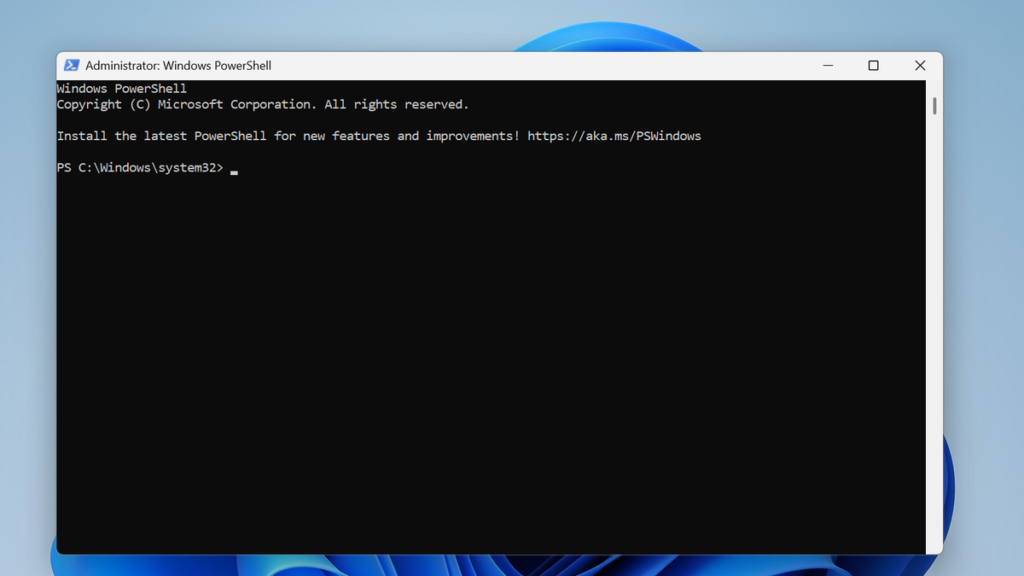
If you’re working with WinAppDriver, you may want to distribute your automation scripts as standalone applications. A common approach is converting a PowerShell script into an executable file using PS2EXE. This helps simplify deployment, improves portability, and allows teams to run automation tools without requiring direct script execution or PowerShell editing access.
In this guide, we’ll share a simple PS2EXE example that demonstrates how to package a script used with WinAppDriver into an EXE file. This method is useful for testers and developers who want cleaner distribution of desktop automation utilities while maintaining compatibility with Windows-based testing environments. The example focuses on a straightforward setup so beginners can quickly implement it.
What Is PS2EXE and How It Works
PS2EXE is a tool that converts PowerShell (.ps1) scripts into executable (.exe) files. This allows developers and system administrators to distribute PowerShell scripts as standalone applications that can run on Windows without exposing the original script code directly. By packaging scripts into an executable format, PS2EXE simplifies deployment, improves usability for non-technical users, and provides an extra layer of protection for the script logic.

Why PS2EXE Is Used
One of the main reasons professionals use PS2EXE is to make PowerShell scripts easier to share and execute. Normally, running a PowerShell script requires a PowerShell environment and sometimes specific execution policy permissions. With PS2EXE, the script becomes an .exe file that users can launch just like any other Windows program. This is particularly useful for IT administrators who distribute automation tools, maintenance scripts, or internal utilities across multiple systems.
How PS2EXE Converts Scripts into Executables
PS2EXE works by embedding the PowerShell script inside a compiled executable wrapper. When the .exe file is launched, it internally calls the PowerShell engine and executes the embedded script. The process typically involves selecting the original .ps1 file, configuring compilation options, and generating the executable file. The final output behaves like a normal application but runs the PowerShell instructions behind the scenes.
Key Features and Customization Options
PS2EXE offers several customization options that make it a powerful tool for developers and administrators. Users can hide the PowerShell console window, add custom icons, enable graphical interfaces, and control execution parameters. Some versions also allow password protection, embedding additional files, or setting specific runtime requirements. These features help transform simple scripts into more professional-looking Windows applications.
Benefits and Practical Applications
Using PS2EXE provides multiple advantages in real-world environments. It improves script distribution, protects the script from casual viewing, and simplifies execution for end users. Organizations often use it to package automation tools, administrative utilities, and internal software scripts. By converting PowerShell scripts into executable programs, PS2EXE bridges the gap between scripting and user-friendly software deployment, making automation tools more accessible and professional.
Installing PS2EXE in PowerShell
Installing PS2EXE in PowerShell is a straightforward process that allows users to convert PowerShell scripts into executable (.exe) files. This tool is widely used by system administrators, developers, and IT professionals who want to distribute scripts as standalone applications. By installing PS2EXE in your PowerShell environment, you gain the ability to package scripts more efficiently, making them easier to run and share across different Windows systems without exposing the raw code.
Preparing Your PowerShell Environment
Before installing PS2EXE, it is important to ensure that your PowerShell environment is properly configured. This includes running PowerShell with administrative privileges and confirming that your system allows module installation. In many cases, Windows may block script execution due to security policies. Adjusting the execution policy temporarily—such as setting it to RemoteSigned—allows you to install trusted modules safely. Preparing the environment ensures the installation process runs smoothly without permission errors or security restrictions.
Installing PS2EXE Using PowerShell Gallery
The most common way to install PS2EXE is through the PowerShell Gallery, which is an official repository for PowerShell modules. Users can install the tool with a simple command that downloads and configures the module automatically. Once the installation command is executed, PowerShell retrieves the PS2EXE package, installs it into the modules directory, and makes it available for use. This method is fast, reliable, and recommended for most users because it ensures the latest stable version of the tool is installed.
Verifying the PS2EXE Installation
After installing PS2EXE, it is important to verify that the module has been installed correctly. This can be done by checking the list of installed modules or by running a command associated with PS2EXE. If the module appears in the installed modules list, it confirms that the installation was successful. Verification ensures that PowerShell recognizes the tool and that it is ready to convert PowerShell scripts into executable files.
Best Practices After Installation
Once PS2EXE is installed, users should follow a few best practices to maximize its effectiveness. Keeping PowerShell modules updated ensures you benefit from the latest features and security improvements. It is also recommended to test script conversions in a controlled environment before distributing executable files to others. By following these practices, developers and IT professionals can use PS2EXE confidently to package and distribute PowerShell automation tools in a more professional and secure manner.
Simple PS2EXE Example (Step-by-Step)
A simple PS2EXE example helps beginners understand how a PowerShell script can be converted into a standalone executable file. Many system administrators and developers write automation scripts in PowerShell, but sharing those scripts with other users can sometimes be complicated. By converting a .ps1 script into a .exe file using PS2EXE, the script becomes easier to distribute and run. A step-by-step example allows users to clearly see how the conversion process works and how PowerShell scripts can function like normal Windows applications.
Creating a Basic PowerShell Script
The first step in using PS2EXE is to create a simple PowerShell script. This script can perform any task, but beginners often start with a small example such as displaying a message or collecting user input. The script is saved with the .ps1 extension, which indicates that it is a PowerShell script file. Writing a simple script helps users focus on learning the conversion process rather than dealing with complex code. Once the script is saved, it becomes the source file that PS2EXE will transform into an executable program.
Running the PS2EXE Conversion Command
After creating the script, the next step is to run the PS2EXE command inside PowerShell. This command tells the PS2EXE tool to take the .ps1 script and compile it into an .exe file. The user specifies the input script file and the desired output executable file. When the command runs, PS2EXE packages the script inside a compiled wrapper that can be executed directly on Windows. This process usually takes only a few seconds and results in a fully functional executable file.
Testing the Generated Executable File
Once the conversion process is complete, it is important to test the generated .exe file. Double-clicking the executable should run the same logic as the original PowerShell script. Testing ensures that the script behaves correctly and that the executable works on the system as expected. If any issues occur, users can modify the original script and run the PS2EXE conversion again. This testing phase is essential for confirming that the final application performs the intended task.
Practical Benefits of Using PS2EXE in Real Projects
Following a simple PS2EXE example demonstrates how powerful this tool can be in real-world scenarios. Organizations often use PS2EXE to distribute administrative tools, automation scripts, and internal utilities in executable form. Converting scripts into .exe files improves usability for non-technical users and prevents direct editing of the script code. By understanding this step-by-step process, developers and IT professionals can efficiently package their PowerShell scripts into professional, easy-to-run applications.
Useful PS2EXE Parameters and Options
PS2EXE provides a variety of parameters and options that allow users to control how a PowerShell script is converted into an executable file. These parameters help customize the behavior, appearance, and functionality of the generated .exe file. For developers and system administrators, understanding these options is essential because they allow scripts to be packaged in a more professional and user-friendly way. By using the right parameters, users can optimize the execution process, hide technical elements, and tailor the executable to specific operational requirements.
Input and Output File Parameters
One of the most commonly used parameters in PS2EXE involves specifying the input and output files. The input parameter identifies the PowerShell script (.ps1) that will be converted, while the output parameter defines the name and location of the final executable (.exe). These parameters ensure that the correct script is compiled and that the resulting file is stored in the desired directory. Properly configuring input and output options is the foundation of the PS2EXE conversion process and allows developers to maintain organized project structures.
Console and Window Behavior Options
PS2EXE also includes parameters that control how the executable interacts with the console window. For example, users can choose to hide the PowerShell console completely or display it during execution. This option is particularly useful when creating tools designed for non-technical users, as it prevents unnecessary command-line windows from appearing. Adjusting console behavior helps create a cleaner and more professional user experience, especially when the executable is part of a graphical or automated workflow.
Customization Features and Interface Options
Another important group of PS2EXE parameters focuses on customization. Developers can assign custom icons, configure graphical interface settings, and modify how the executable appears when launched. These options help transform a simple script into a polished application that resembles traditional Windows software. Customization not only improves the visual presentation but also enhances usability by making the tool easier to identify and interact with.
Advanced Parameters for Performance and Security
PS2EXE also offers advanced options designed for users who need greater control over performance and security. These parameters allow developers to optimize how the executable runs, manage error handling, and restrict certain execution behaviors. In professional environments, these advanced settings can be used to protect scripts from unauthorized modification and ensure stable performance across multiple systems. By learning and applying these parameters effectively, users can create secure, efficient, and reliable executable tools from their PowerShell scripts.
Advantages and Limitations of Using PS2EXE
PS2EXE is a widely used tool that allows developers and system administrators to convert PowerShell scripts into executable (.exe) files. This process makes scripts easier to distribute and execute on Windows systems without requiring users to directly run PowerShell commands. While PS2EXE provides several advantages in terms of usability and deployment, it also has certain limitations that users should understand before relying on it for large-scale or sensitive projects. Evaluating both the advantages and limitations helps professionals decide when and how to use PS2EXE effectively.
Key Advantages of Using PS2EXE
One of the major advantages of PS2EXE is the ability to package PowerShell scripts into a single executable file. This simplifies distribution because users can run the tool like a normal Windows application without needing to open PowerShell manually. It also improves the overall user experience, especially for non-technical users who may not be familiar with scripting environments. Additionally, converting scripts into executable files can make them appear more professional and easier to manage within organizational workflows.
Improved Script Deployment and Accessibility
PS2EXE significantly enhances the deployment process for automation tools and administrative scripts. Instead of sharing raw .ps1 files, developers can distribute .exe applications that can be executed with a simple double-click. This approach reduces the chances of users accidentally modifying the script and makes automation tools more accessible across different departments. For organizations that rely on internal scripts for system management, this method helps standardize the way scripts are delivered and executed.
Limitations Related to Security and Transparency
Despite its advantages, PS2EXE does not fully secure the underlying PowerShell script. Although the script is embedded within an executable file, advanced users may still extract or analyze the code using specialized tools. This means that PS2EXE should not be considered a complete security solution for protecting sensitive logic or proprietary scripts. Additionally, some antivirus programs may flag newly generated executables as suspicious until they are verified, which can create minor deployment challenges.
Performance and Compatibility Considerations
Another limitation of PS2EXE involves performance and compatibility. Since the executable ultimately relies on the PowerShell engine to run the embedded script, the target system still needs a compatible PowerShell environment. In some cases, large or complex scripts may not perform exactly the same as native compiled applications. Developers should test the executable on different systems to ensure reliability and compatibility. By understanding these limitations and planning accordingly, users can take full advantage of PS2EXE while avoiding potential issues during deployment.
Conclusion
Ps2Exe provides a straightforward way to convert PowerShell scripts into executable files, making distribution and execution easier across systems without requiring users to manually run scripts. A simple example demonstrates how efficiently developers and administrators can package their automation tasks into a single executable. This approach improves usability, enhances script portability, and helps protect the original code while maintaining the functionality of the PowerShell script.