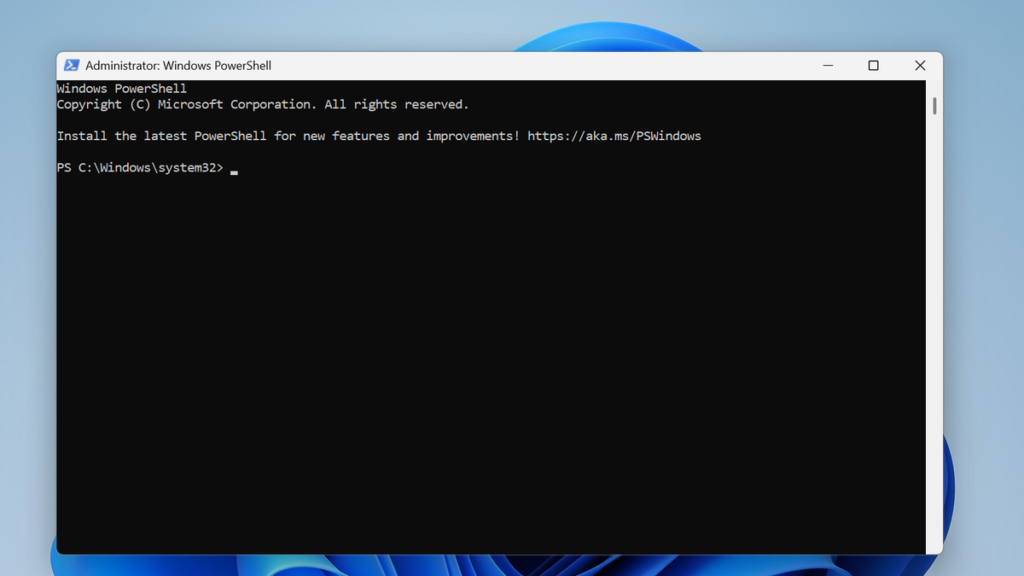

PowerShell scripts have become an indispensable tool for IT professionals and system administrators, offering unparalleled power for automating tasks and managing complex Windows environments. However, their effectiveness is often limited by a significant hurdle: distribution. Sharing a .ps1 file requires the end-user to have PowerShell installed, understand execution policies, and often feel comfortable running command-line tools, which creates a barrier for non-technical users and complicates large-scale deployments.
This is precisely where a tool like PS2EXE GUI becomes a game-changer. It bridges the gap between powerful scripting and user-friendly application distribution. PS2EXE GUI is a graphical user interface for the PS2EXE utility, a tool that packages your PowerShell scripts into standalone executable (.exe) files. This conversion process encapsulates your script, its dependencies, and a lightweight PowerShell host, allowing anyone to run your automation with a simple double-click, just like any other Windows application.
By converting your scripts, you unlock a new level of professionalism and accessibility. You can distribute your tools to colleagues or clients without requiring them to navigate the complexities of the PowerShell environment. This not only simplifies deployment but also provides a basic layer of obfuscation for your code and allows you to brand your tools with custom icons and version information, transforming a simple script into a polished, distributable software package.
The Need for PS2EXE GUI
The Power and Limitation of PowerShell Scripts
PowerShell scripting provides a robust framework for automating repetitive tasks, from simple file management to intricate cloud service orchestration. Its object-based nature and deep integration with the Windows ecosystem make it the go-to language for system administration. However, this power is tethered to the PowerShell environment itself. A script is just a text file that requires the PowerShell engine to interpret and execute its commands, which is not always enabled or understood by the average end-user.
What is a Script-to-Executable Converter?
A script-to-executable converter is a specialized utility designed to solve the distribution problem inherent in scripting languages. It works by packaging the script code along with a minimal runtime environment into a single, portable executable file. When a user runs this .exe file, the embedded runtime unpacks the script into memory and executes it, effectively mimicking the actions of the native scripting engine without the user needing to install or configure anything.
Introducing PS2EXE GUI as the Solution
PS2EXE GUI stands out by providing a user-friendly graphical front-end to the powerful, yet command-line-intensive, PS2EXE tool. Instead of memorizing complex command-line arguments and syntax, users can perform the entire conversion process through an intuitive interface. This visual approach lowers the barrier to entry significantly, making script conversion accessible even to those who are not comfortable with the command line, thus democratizing the ability to create and share professional-looking tools.
Getting Started with PS2EXE GUI
System Requirements and Prerequisites
Before you can begin converting your scripts, it is essential to ensure your system meets the necessary requirements for running PS2EXE GUI and for the resulting executables to function correctly. The primary requirement is a Windows operating system, as the tool and the executables it creates are native to this environment. You will also need an appropriate version of the .NET Framework installed, typically .NET Framework 4.5 or higher, as the tool relies on it for its operation.
Where to Download the Tool Safely
Obtaining PS2EXE GUI from a reputable source is crucial to avoid security risks. The official and most reliable source for this tool is its project page on a well-known code hosting platform like GitHub. When searching, look for the original project repository, which is usually maintained by the creator. Navigate to the “Releases” section of the project page to find the latest stable version, which is typically provided as a downloadable .zip archive containing the application files.
Initial Setup and Environment Check
Once you have downloaded the .zip file, extract its contents to a dedicated folder on your computer. It is good practice to store it in a location like C:\Tools\PS2EXE-GUI for easy access. Before running the application for the first time, you may need to “unblock” it. Right-click on the main .exe file, select “Properties,” and if you see an ” Unblock” checkbox at the bottom of the General tab, check it and click OK. This prevents Windows from flagging the file as a security risk from the internet.
- Ensure you are running a modern version of Windows.
- Verify that .NET Framework 4.5 or newer is installed.
- Download the tool only from its official GitHub repository.
- Extract the downloaded archive to a permanent folder.
- Unblock the executable file in its properties to avoid security warnings.
Navigating the PS2EXE GUI Interface
The Source File Selection Area
Upon launching PS2EXE GUI, the first and most prominent section you will encounter is the source file selection area. This typically consists of a text box accompanied by a “Browse” button. Its purpose is straightforward: you must use this field to specify the path to the PowerShell script (.ps1 file) that you wish to convert. You can either type the full path directly into the box or, more conveniently, click the “Browse” button to navigate your file system and select the script visually.
Configuring the Output Executable
Directly below the source file selection is the output configuration area. This section allows you to define where the final executable file will be created and what its name will be. By default, the tool will often suggest a path and name based on the source script, for example, placing the new .exe in the same folder with the same name. You are free to change this path and filename to suit your organizational needs, such as creating a dedicated “Builds” folder for all your compiled tools.
The Main Information Panel
The central part of the PS2EXE GUI window is typically occupied by a large information panel or a series of tabs. This panel is dynamic and updates based on the script you have loaded. It will display information parsed from your script, such as any parameters it accepts, a description if you have included comment-based help, and other metadata. This panel is your main dashboard for reviewing the script’s details before you proceed with the compilation process, ensuring everything is in order.
The Core Conversion Process
Loading Your PowerShell Script
The first step in the actual conversion is to load your script into the application. Click the “Browse” button in the source file area and navigate to your .ps1 file. Once you select it and click “Open,” the GUI will instantly load the script. You will see the source file path populated in its text box, and the main information panel will come to life, displaying details about your script. This is the moment when the tool analyzes your code to prepare for the build.
Setting Basic Output Options
With your script loaded, the next step is to confirm or set the destination for your new executable. Look at the output configuration field. If the suggested location and name are acceptable, you can leave them as is. If you wish to save the .exe to a different directory or give it a more descriptive name, now is the time to make that change. Simply click the corresponding “Browse” button for the output path and choose your desired location and filename for the final application file.
Initiating the Build Process
You are now ready to convert your script. The final action is to locate and click the main “Compile,” “Build,” or “Convert” button, which is usually prominently displayed on the interface. Once clicked, the tool will begin the conversion process. This may take a few seconds to a minute, depending on the complexity of your script and the speed of your computer. A progress indicator or a status message will keep you informed, and a notification will appear upon successful completion.
- Select your PowerShell script using the source file browser.
- Define the desired output path and name for your executable file.
- Click the main “Compile” or “Build” button to start the conversion.
- Wait for the process to complete, watching for a success message.
- Navigate to the output folder to find and test your new
.exefile.
Advanced Configuration and Customization
Embedding Application Icons and Version Info
To elevate your script from a simple tool to a professional application, PS2EXE GUI allows you to customize its appearance and properties. Within the interface, usually under a tab labeled “Application” or “Version Info,” you can specify a custom icon file (.ico). This icon will be applied to the final .exe file. You can also input details like the product name, file version, company name, and copyright information, which users can see by right-clicking the executable and viewing its properties.
Managing PowerShell Execution Policies
A significant advantage of using PS2EXE is its ability to bypass the system’s PowerShell execution policies. In the advanced settings of the GUI, you can configure how the resulting executable handles this. You can typically choose to run the script with a specific, pre-defined execution policy, such as “Bypass” or “Unrestricted,” ensuring that your tool will run correctly on any machine, regardless of the local security settings that might otherwise block a standard .ps1 file from executing.
Handling Command-Line Parameters
If your PowerShell script is designed to accept command-line parameters, PS2EXE GUI provides a sophisticated way to manage them. After loading your script, the tool will often detect any param() blocks and display them in a dedicated section. Here, you can review each parameter, set default values, and define whether they are mandatory. This configuration is then built into the executable, allowing users to pass these parameters to the .exe file just as they would to the original script.
- Add a custom
.icofile to brand your executable professionally. - Populate version information fields like product name and copyright.
- Configure the execution policy setting to ensure your script runs anywhere.
- Review and set default values for any command-line parameters your script uses.
- Explore other advanced options like targeting a specific .NET Framework version.
Troubleshooting and Best Practices
Common Conversion Errors and Their Fixes
Sometimes, the conversion process may not go smoothly. A common error is a “file not found” issue, which usually means the path to your source or output file is incorrect. Another frequent problem is a “permission denied” error, indicating you do not have write access to the output directory. If the compilation fails with a script-specific error, the issue likely lies within your PowerShell code itself, such as a syntax error or a dependency on a module that is not installed on your system.
Ensuring Cross-System Compatibility
For your executable to work reliably on different machines, you must design your PowerShell script with portability in mind. Avoid using hard-coded paths that are specific to your computer, like C:\Users\YourName\Documents. Instead, use environment variables or relative paths. Furthermore, be mindful of dependencies. If your script uses a specific PowerShell module, that module must be present on the target machine, or you must include logic within your script to install it automatically if it is missing.
Security Considerations for Executable Scripts
While converting a script to an EXE provides a layer of obfuscation, it is not true encryption. A determined user with the right tools can still extract the original PowerShell script from the executable file. Therefore, you should never store sensitive information like plain-text passwords or API keys directly within your script. For handling credentials, always use secure methods like the Get-Credential cmdlet or the Windows Credential Manager, ensuring that sensitive data is not hard-coded and vulnerable to extraction.
Conclusion
PS2EXE GUI is an invaluable tool that transforms the way you share and deploy PowerShell automation. It effectively removes the technical barriers associated with script distribution, allowing you to deliver powerful, self-contained tools to any user, regardless of their technical expertise. By following this guide, you can confidently convert your scripts into professional executables, complete with custom branding and robust configuration options. This process not only enhances the user experience but also protects your work and simplifies your deployment workflow, empowering you to share your automation solutions more broadly and effectively.